
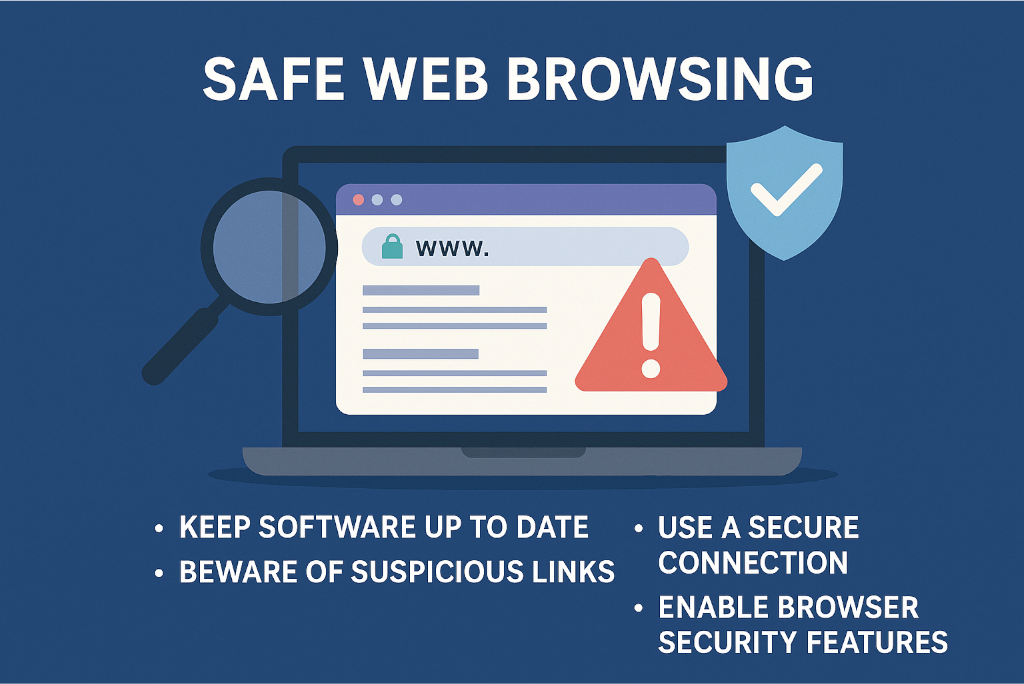
Know‑How Guide: Safe Web Browsing – Turning Everyday Online Activity into a Security Strength
In today’s business world, the simple act of browsing the web is something we do constantly and almost unconsciously: checking emails, researching suppliers, logging into cloud apps, managing social media, or accessing internal tools. But behind that familiar convenience hides one of the most underestimated cyber threats: unsafe web browsing practices.
This Know‑How article explores the core risks of web browsing, common attacker techniques, and the practical steps every business can take to reduce the risk of falling victim to a preventable cyber incident.
Why Web Browsing Matters More Than Ever
Web browsing has become the primary interface between people and their digital tools. Unfortunately, this also makes it the perfect environment for cybercriminals.
1. Browsers are highly targeted
Attackers know they can exploit outdated browsers, weak browser configurations, or insecure extensions. Keeping browsers updated is one of the simplest and most effective defences.
2. Users operate on autopilot
Much of our browsing behaviour is habitual: clicking familiar buttons, searching quickly, multitasking across tabs. That automatic behaviour is exactly what social engineers rely on.
3. The line between safe and unsafe websites is thin
Just because a site looks professional, loads quickly, or even uses HTTPS doesn’t guarantee safety. Attackers increasingly clone legitimate websites or use lookalike domains.
4. SMEs remain prime targets
Small businesses often assume attackers aren’t interested in them, but internal guidance makes clear that SMEs are frequently targeted because they hold valuable data and often lack strong defences.
The Most Common Web Browsing Threats
Phishing and Malicious Links
Cybercriminals create links that look legitimate but redirect users to malicious sites designed to steal passwords, download malware, or trick staff into submitting sensitive information. Hovering over links before clicking remains a critical habit.
Malicious Downloads
Seemingly harmless files – PDFs, browser plug‑ins, “free tools,” or software updates – may contain malware. Attackers often disguise harmful code as a routine download.
Fake or Compromised Websites
Not all malicious sites appear suspicious. Some are sophisticated clones of real services, including email login pages, cloud platforms, or supplier portals. Checking URLs carefully is essential.
Public Wi‑Fi Risks
Browsing via public Wi‑Fi allows attackers to intercept unencrypted data or impersonate legitimate hotspots. Avoid performing any sensitive activity on public networks without a VPN.
Browser Vulnerabilities
Outdated browsers lack critical security patches, leaving users open to exploits. Many attacks don’t require users to click anything – just loading a malicious page can trigger an exploit if the browser is out of date.
Recognising Dangerous Websites
Not all malicious websites are obvious, but there are common red flags to watch out for:
- Odd or misspelled URLs
- Pages filled with pop‑ups, flashing ads, or poor design
- Sites asking for information unexpectedly
- Login pages that don’t quite match what you’re used to
Always check for HTTPS, but remember, HTTPS alone does not guarantee safety. It simply means the connection is encrypted.
Best Practices for Secure Web Browsing
Your internal guidance lays out several simple but powerful practices for ensuring safe browsing. Here’s how to implement them consistently across your organisation.
1. Keep Browsers Updated
Set browsers to update automatically and encourage staff to restart them regularly to apply patches. This one step closes dozens of known vulnerabilities.
2. Use Built‑In Browser Security Tools
Features like pop‑up blockers, tracking protection, and safe‑browsing checks are designed to prevent malicious content from loading. Enable them by default.
3. Use Trusted Browser Extensions Only
Staff should not install arbitrary extensions. Every extension is effectively a miniature application with access to browsing data. Use approved, reputable tools only.
4. Avoid Public Wi‑Fi for Sensitive Tasks
If staff must work remotely, ensure they use a VPN to encrypt traffic and avoid exposing company data to attackers.
5. Be Careful with Downloads
Only download software from verified vendors or official app stores. If users don’t recognise a file or download prompt, they should not proceed.
6. Check URLs Carefully
Before entering credentials on any site, double‑check the address bar. Phishing pages often rely on users missing subtle spelling differences or unusual domain endings.
Developing Good Browsing Habits Across the Business
Safe browsing isn’t only about technology – it’s about culture and awareness.
- Encourage staff to pause before clicking unfamiliar links.
- Provide regular “micro‑training” on identifying suspicious sites.
- Build a safe internal reporting culture where staff feel comfortable flagging anything odd.
- Reinforce that cyber hygiene is part of everyday professionalism.
Cybersecurity guidance for SMEs repeatedly stresses that human error is the number one cause of breaches, and web browsing is where many of these errors occur.
Final Thoughts
Web browsing may feel routine, but in cybersecurity terms, it’s one of the highest‑risk activities your staff engage in every day. The good news is that most risks are preventable through simple awareness, basic browser hygiene, and clear internal policies.
By recognising the warning signs, using browser security features, avoiding unsafe networks, and staying vigilant, your team can transform everyday browsing from a vulnerability into a strength.